Showing posts with label tips. Show all posts

Tuesday, 22 April 2014

How to wireframe App concepts like a Pro

We're often asked how we go about taking an initial idea and ultimately making this into an App. In most cases the brief is more around a concept and the required functionality. We believe that no matter how complex an App's functionality is, the App should be simple to use. In the early stages of App development it's not often possible to write a detailed specification together for clients. This is especially true if the App hasn't been fully defined! What we've found is that a good first stage is to think about the different screens an App will contain. We then put together some simple wireframes of all these screens and how these link together. These wireframes are a great way to get across an App's functionality without the actual look and feel becoming a distraction.

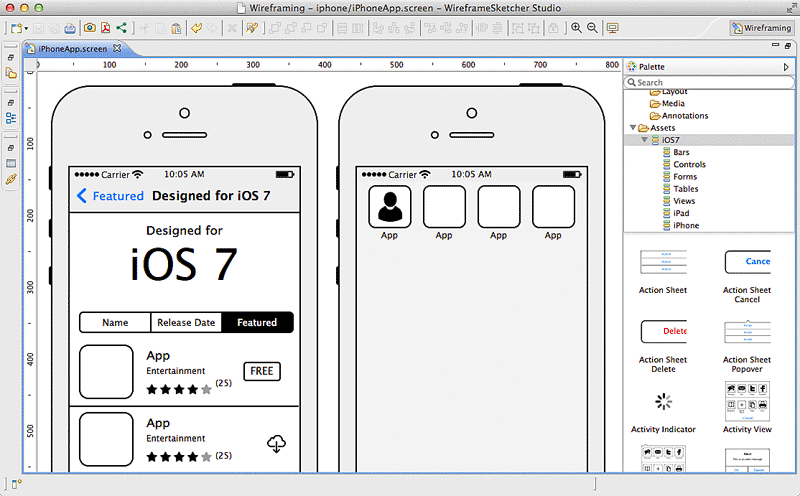
Over the past five years we've tried various tools to wireframe App screens and workflow with varying success. This has ranged from off the shelf online tools to designing Photoshop frameworks ourselves. What we've found in this time is that software was either too simple (and not flexible enough) or too complex (took too long to use). We'd just about given up looking until we came across some software called WireframeSketcher. This software fits the bill perfectly for putting together App screens (and website pages too) very very quickly. This can then get across to a client the functionality of an App without days of specialist graphic design work that would often then have to be changed or reworked. Using this software you can sketch out the framework and all screens of an averagely sized App in an hour or so which is fantastic.

So how does it work? When you first create a project you say which type of project it is. This can be mobile or web and there are even some examples to get you started. If you're creating a mobile wireframe then you can choose iOS, Android, or Windows Phone so nobody should feel left out. Whichever you choose you have a full set of standard drag and drop components you can use (e.g. containers, image placeholders, maps etc). You also have a full set of platform specific components so an Android App will have the correct default keyboard, dialog boxes, buttons etc. Building your screens is just a case of using these components and resizing them accordingly and adjusting text etc to suit your App. One thing we've found to be the biggest challenge with putting wireframes together with other software is tabbars. Not with WireframeSketcher! You can very quickly create and adjust a tabbar including text and custom icons with just a few clicks. Once you've got one of your screens built then you'll most likely want to build the other screens of your App based on this (so you don't have to redraw tabbars etc). You can clone existing screens to create a new one and then just modify that to suit. This is especially useful if you're showing screens with slight difference such as one with a dialog box and one without. Once you've got all your screens built then WireframSketcher allows you to export these out as PDF or images. We tend to print these out at A4 to discuss with clients and also use the images within documents to put together workflow and App Map documents.

If you're looking for a wireframing tool yourself then I'd highly recommend you take a look at WireframeSketcher. They even have a free trial too so you've nothing to lose. http://wireframesketcher.com


Friday, 20 September 2013

7 Top Tips For iOS7

So you've just installed the shiny new iOS7 but apart from the new look you're not sure what else it does. Or even worse you were used to the way something worked and now it's different. Well after answering a few questions (that were often the same) about it from our clients over the last day or so we decided to put a few top tips together.

1. New slide up/down panels
By sliding your finger down from the top of the screen the notification centre is opened. As well as just showing old (misssed) notifications this now includes the date, current weather, calendar, reminders, and stocks. This can now be done from the lock screen though can be disabled in settings.

Another new panel has also been added by swiping your finger up from the bottom of the screen too. This is called command centre and includes things you quickly want to change or specific Apps to quick launch. This includes things like flight mode, wireless on/off, brightness, volume, and timer, calculator, and some others.

2. Searching
In previous version of iOS you had a specific search screen to the left of the home screen. This is no longer there on iOS7 so how do you search? From any of the home screens if you swipe your finger down from the middle of the screen then the search box will appear at the top of the screen. Simple when you know how!

3. Flashlight Addition
Ever found yourself fumbling around in the dark and wishing you had a torch with you. Well with iOS7 you can use your phone as one! From the new command centre you can switch on the flashlight with a single press and use your phone's camera flash as a torch.

4. Email Changes/Improvements
If you're used to going to your inbox and swiping right across the message previous to delete that obvious spam message you may get a shock. It doesn't do anything now! But don't worry, if you swipe right to left instead of left to right then you can delete (trash) instantly or even reply, forward etc too using the more button.

Another massive improvement that has always been missing is the ability to "mark all". This is especially useful for people who have their email setup where they are seeing the same messages on their phone as their computer but these are showing as unread on the phone. Now you can just click "edit" and then use the new mark all as read function.

5. Closing running programs
Previously you could close down Apps that were running in the background by double clicking the home button and then holding your finger on the App icon and select delete. With iOS7 the double home button click is the same but then it shows a card of the App and the icons below. Now matter how long you keep your finger pressed the delete button won't appear! You now simply swipe the App card upwards off the screen and it's closed.

6. Blocking numbers
This will be a lifesaver for those of you that are always getting spam PPI claim phone calls! If you go into recent calls and click on the info icon then at the bottom of that screen you can "block this caller". This then blocks calls, messages, or FaceTime from that number/contact.

7. Photo Viewing
As well as the existing albums structure then if you use the "photos" tab then you can view your photo's by collections and moments. This cleverly splits up your photo's into headings of the place and times photo's were taken. So if you were on holiday for a week in Cornwall it would create a heading for this and have all your holiday photo's in there. This makes looking for that specific photo from an event so much easier than going through your whole camera roll!

We hope that these tips all help you get along with your fresh install of iOS7 and please feel free to add tips of your own in the comments section below.

Tuesday, 1 February 2011

5 Top Tips for Mobile Apps in 2011

Here are my 5 top tips for what I believe will be the big news in the mobile App world for 2011:

1. Apps are here to stay
Currently more than half a million apps are downloaded every hour and the average smartphone user has 22 of them installed (source: Borrell Associates data). 2011 will see an even higher number of Apps on smartphones; and importantly this same App model will appear on tablets (iPad, Android tablet), TVs (Google TV, Apple TV), desktop (Intel AppUp, Mac App Store, AllMyApps for Windows, etc.) and Web browsers (Google Chrome Web Store, Mozilla Open Web App Store, etc.)

2. M-Commerce
Until now virtually all App revenue has come from users buying the App in the first place. While 2010 has seen momentum gathering of in App purchasing (just a few weeks ago a lot of the top grossing iPhone Apps were free but generated revenue using in App purchase) 2011 will see true m-commerce coming to the fore. Until now there haven't been many options for in App purchase but this is changing. Just recently PayPal have introduced App integration (which we have working in an App!) so expect others to follow suit.

3. Smart Notifications
It has already been proven (source: Mobclix survey) that Apps using push notifications (for example, if you're using the Ebay iPhone App a popup appears to warn you of auctions about to end even when the App isn't running) are opened up 4 times as many times as a non-push App. In 2011 expect more and more push Apps as well as linking this to location based services to deliver timely notifications based on your preferences.

4. Apps hit the mainstream
The average smartphone user now spends 2.8 hours per day using apps and 3 in 5 people first turn to an app before searching the Web (source: Mobclix). Apps have gained more popularity over the browser this year (source: Parks Associates) as consumers under 30 are now using mobile Apps rather than the mobile web. With more smartphones and platforms emerging in 2011 with even tighter App integration this number is set to increase dramatically.

5. Platform Wars?
2010 marked the beginning of the smartphone platform wars, which was mainly a battle between Apple and Android. Expect more fun, games, and marketing stunts in 2011 not just between Apple and Android but also with Microsoft Windows Phone 7, Nokia, RIM (who make Blackberry's), and Palm.


There are lots of other things to look out for such as augmented reality (check out our App www.festfind.co.uk to discover what AR is all about), growth in business and enterprise App space, common mobile App standards, and a huge growth of in App advertising. All this should make for an interesting year!

Article written by Richard Eaton of Appware - www.appware.co.uk